


Accessibility is one of those topics that gets treated as a checkbox rather than a commitment. Build the website, then retroactively run an accessibility audit and patch the obvious failures.
That's the wrong approach: and for nonprofits specifically, it's particularly self-defeating. The organizations most often served by nonprofits: people with disabilities, older adults, communities with limited technology access: are precisely the populations most likely to encounter inaccessible design as a barrier.
Here's how to think about accessibility correctly, what compliance actually requires, and how to build it in from the start rather than bolt it on at the end.

What "Accessible" Actually Means
Web accessibility means that people with disabilities can perceive, understand, navigate, and interact with your website. This includes users who are:
- Visually impaired or blind (using screen readers, high-contrast modes, or braille displays)
- Deaf or hard of hearing
- Physically limited (unable to use a mouse, relying on keyboard navigation or switch controls)
- Cognitively or neurologically diverse (dyslexia, attention disorders, processing differences)
- Using older devices, slower connections, or non-standard browsers
The international standard for web accessibility is WCAG (Web Content Accessibility Guidelines), currently at version 2.2 (published October 2023, with the version most regulators and procurement policies now reference). WCAG 2.2 doesn't replace the substance of 2.1 — every 2.1 success criterion still applies — it adds nine new criteria on top. The three compliance levels are:
- Level A: Minimum requirement. Failing Level A makes your site inaccessible to many users.
- Level AA: The standard for most legal compliance requirements and the target for most organizations.
- Level AAA: Enhanced accessibility. Not required across the board but desirable for organizations serving populations with specific needs.
For Mercy For Animals, we achieved full accessibility compliance across their site. That's what "we built it right" looks like.

Why Accessibility Matters for Nonprofits Specifically
Your Mission Audience May Depend on It
Consider who your nonprofit serves and who supports it. Organizations working with elderly populations, disability communities, or underserved demographics have a direct ethical obligation to ensure their digital presence serves those communities. An inaccessible website isn't just a legal risk: it's a mission failure.
Accessibility Is an SEO Signal
Many accessibility best practices directly improve search engine optimization. Alt text on images, proper heading structure, logical page flow, and descriptive link text all benefit both screen reader users and search engine crawlers. The effort is additive.
Related: Nonprofit Website SEO: How to Get Found Without a Big Ad Budget →
ADA Legal Risk Is Real
Title III of the Americans with Disabilities Act has been applied to websites in numerous court cases, and the trend has been toward broader application. Nonprofits are not exempt. The legal risk of operating an inaccessible website: particularly one that serves the public and accepts donations: is real and growing.
The Most Common Accessibility Failures We Audit
Missing or Inadequate Image Alt Text
Every image that conveys meaning needs descriptive alt text that conveys the same meaning to a screen reader. "Image001.jpg" is not alt text. "Mercy For Animals volunteers unloading rescued chickens at a sanctuary in California" is.
Decorative images (backgrounds, dividers) should have empty alt text (alt="") so screen readers skip them rather than reading the filename.
Insufficient Color Contrast
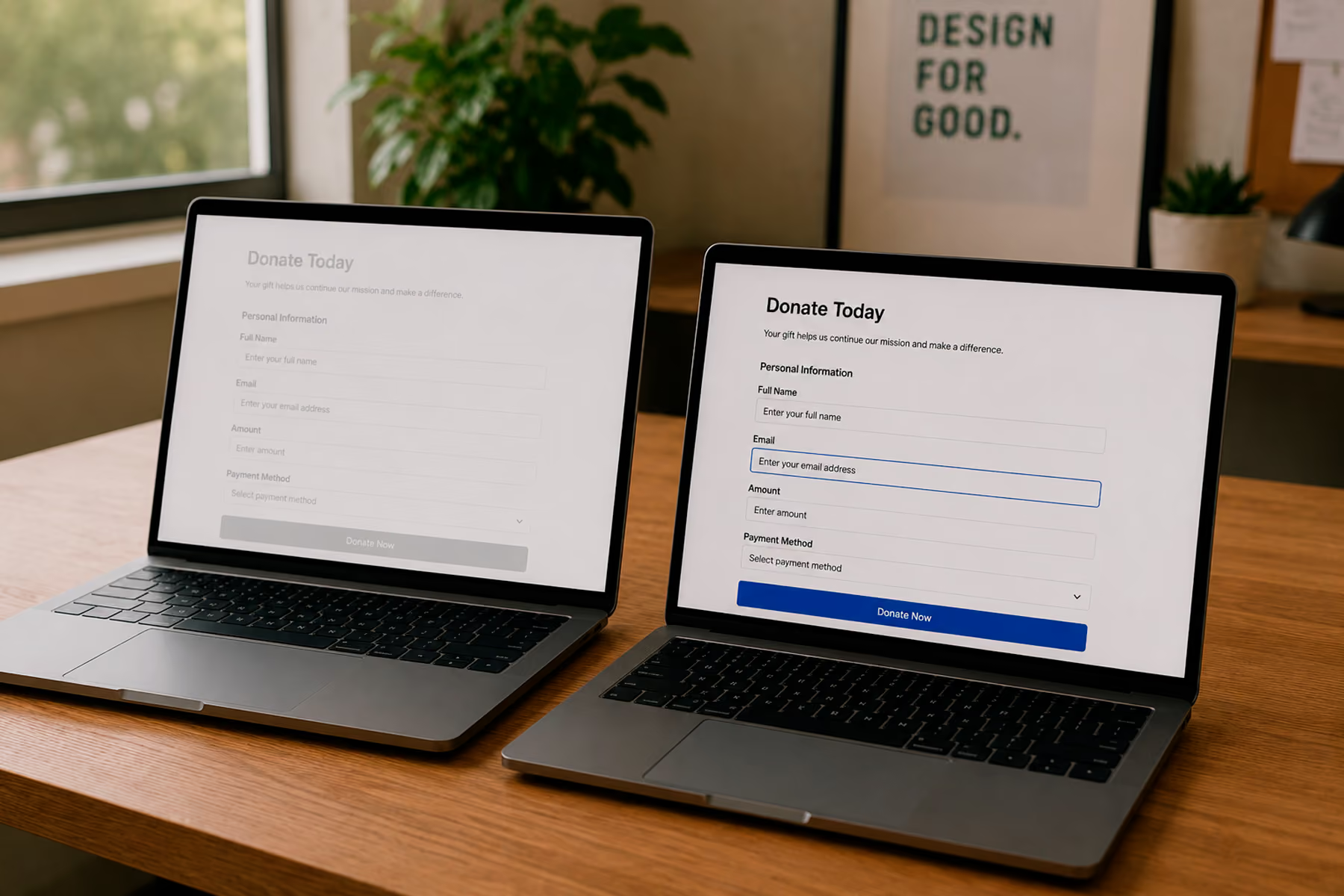
Text needs sufficient contrast against its background to be readable by users with visual impairments. WCAG 2.2 AA requires a contrast ratio of at least 4.5:1 for normal text and 3:1 for large text — this requirement is unchanged from 2.1.
Soft gray text on a white background: a common aesthetic choice: frequently fails this requirement. Checking contrast ratios before finalizing any color palette is a simple step that catches this early.
Tool: WebAIM Contrast Checker: free and immediate.
Non-Keyboard-Navigable Interfaces
Many users navigate without a mouse: using keyboard tab navigation, switch controls, or other assistive devices. Every interactive element (links, buttons, form fields, dropdown menus) needs to be reachable and operable via keyboard alone.
This is particularly relevant for donation forms. A donation flow that requires clicking a dropdown to select an amount: but that dropdown isn't keyboard-accessible: locks out a meaningful portion of potential donors.
Related: How to Design a Nonprofit Website That Increases Donations →
Forms Without Proper Labels
Every form field needs an associated label element that explicitly identifies what the field is for. Placeholder text alone doesn't count: it disappears when the user starts typing, and screen readers may not announce it correctly.
Donation forms, volunteer applications, newsletter sign-ups: every form on a nonprofit website is a conversion point, and every form needs proper labeling.
Videos Without Captions
Any video content needs captions for deaf or hard-of-hearing users. YouTube and Vimeo both offer auto-captioning as a starting point, but auto-captions should be reviewed and corrected: they're often inaccurate, especially with proper nouns, technical terms, or speakers with accents.
Missing Skip Navigation
Users who navigate via keyboard or screen reader should be able to skip the main navigation and jump directly to the main content of the page. A "skip to main content" link: often invisible to sighted users but present in the code: handles this. It's a small addition with significant impact for assistive technology users.
How to Audit Your Current Site
Automated Audit Tools
These tools scan your site for technical accessibility issues and generate reports:
- WAVE by WebAIM: wave.webaim.org: Excellent free browser-based accessibility evaluation tool
- axe DevTools: Browser extension for Chrome/Firefox; detailed technical findings
- Lighthouse: Built into Chrome DevTools; includes accessibility audit
Important caveat: automated tools catch technical issues but can't fully evaluate experiential accessibility. A site can pass automated tests and still be confusing or difficult for real assistive technology users. Automated audits are a starting point, not a complete assessment.
Related: How to Do a Nonprofit Website SEO Audit (Free Checklist) →
Manual Testing
- Navigate your entire site using keyboard only (Tab to move forward, Shift+Tab backward, Enter to activate)
- Turn on VoiceOver (Mac/iOS) or NVDA (Windows, free) and attempt to complete a donation
- Enable high-contrast mode in your OS and review the visual result
- Test with browser zoom at 200%: does the layout still work?

Building Accessibility In (Not Bolting It On)
Retrofitting accessibility onto a completed design is expensive and incomplete. Building it in from the start is efficient and thorough.
At the design phase:
- Establish color palettes with sufficient contrast from the beginning
- Design focus states for all interactive elements (the visual indicator that shows which element is keyboard-focused)
- Ensure adequate tap target sizes for mobile (24x24px is the WCAG 2.2 AA minimum; we typically design closer to 44x44px, the AAA-level target, since larger targets meaningfully reduce mis-taps on a donation flow)
- Plan page structure with logical heading hierarchy
At the development phase:
- Use semantic HTML (section, nav, main, article tags used appropriately)
- Ensure all interactive elements are keyboard accessible
- Implement proper form labeling
- Add appropriate ARIA attributes where HTML semantics are insufficient
For content management:
- Train content editors on writing descriptive alt text
- Establish protocols for captioning video before publishing
- Create link text standards ("Learn more about our volunteer program" instead of "Click here")

The Wandr Accessibility Commitment
Every nonprofit website we build is designed and developed for WCAG 2.2 AA compliance. It's not an add-on service or an optional upgrade: it's how we build.
The reason is simple: if a nonprofit's digital presence is inaccessible, it's failing the people it's supposed to serve. That's not an outcome we're willing to deliver.
Talk to us about accessibility for your nonprofit website →
Resources
- Web Content Accessibility Guidelines (WCAG) 2.2
- WebAIM: Web Accessibility In Mind
- The A11Y Project: Community-driven accessibility resource
Wandr. Accessibility is how we build, not how we audit. See our nonprofit services →
